

Fix Product Activation Failed in Microsoft Word | How To Solve MS Word Product Activation Failed
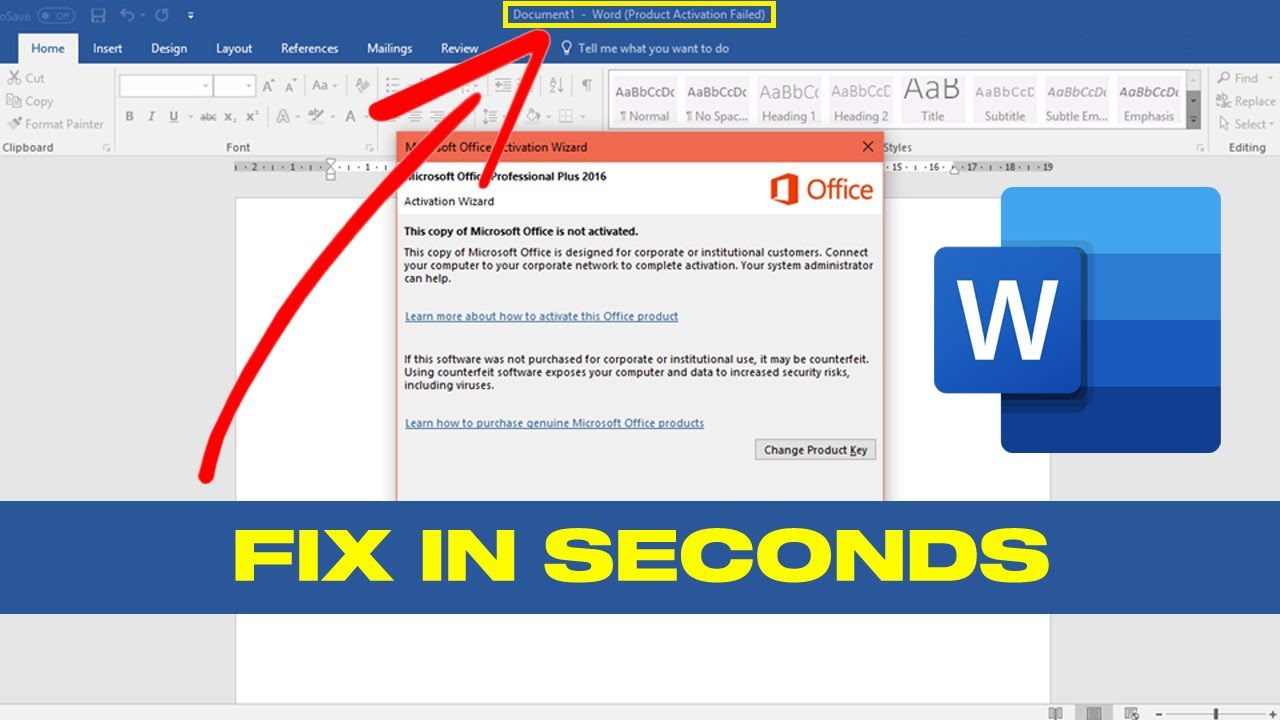
There's little that throws a wrench into your productivity quite like staring at that jarring red banner across your Microsoft Word document: "Product Activation Failed." It’s an infuriating moment, transforming a simple task into an unexpected troubleshooting marathon. Whether you're rushing to meet a deadline, drafting an important email, or simply trying to get your thoughts down, this error can bring your workflow to a grinding halt. But don't fret! You're not alone, and more importantly, there are concrete steps you can take to banish this message and get back to what you need to do.
This isn't just about a pesky pop-up; it's about ensuring your software is legitimate, up-to-date, and fully functional. Let's dive into understanding why this happens and, more importantly, how to fix it.
Understanding the "Product Activation Failed" Message
Before we jump into solutions, it helps to understand what this message typically signifies. Essentially, Microsoft Office, including Word, requires activation to verify that your copy is genuine and that you have a valid license to use it. When activation fails, it usually points to one of several issues:
- Expired Trial or Subscription: Your free trial might have ended, or your Microsoft 365 subscription might have lapsed.
- License Key Issues: An incorrect or invalid product key was entered, or the key has been used on too many devices.
- Internet Connectivity Problems: Office needs to connect to Microsoft's activation servers to verify your license. Poor or no internet can prevent this.
- Software Corruption: Installation files might be damaged, preventing proper activation.
- System Date/Time Incorrect: Believe it or not, an incorrect date or time on your computer can sometimes interfere with activation.
Common Solutions for Microsoft Word Activation Errors
Let's walk through the most common and effective fixes for the "Product Activation Failed" error. Start from the top and work your way down until your Word is back in action.
- Check Your Internet Connection: This might seem obvious, but a stable internet connection is crucial for activation. Ensure you're connected and can access other websites.
- Run Office as Administrator: Sometimes, Office applications need elevated permissions to communicate with activation servers.
How to: Close all Office apps. Find Word (or any Office app) in your Start menu, right-click, and select "Run as administrator."
- Verify Your Microsoft Account and Subscription Status: If you use a Microsoft 365 subscription, log in to your Microsoft account online to ensure your subscription is active and there are no billing issues.
How to: Go to account.microsoft.com/services and sign in with the account linked to your Office license. Check the status of your subscription.
- Update Microsoft Office: Outdated software can sometimes lead to activation problems. Ensuring Office is up-to-date can resolve underlying bugs.
How to: Open any Office application (like Word), go to "File" > "Account" (or "Office Account") > "Update Options" > "Update Now."
- Repair Your Office Installation: Corrupted installation files are a common culprit. Microsoft Office has built-in repair tools that can often fix these issues without needing to reinstall.
How to: Go to "Settings" > "Apps" > "Apps & features" (or "Control Panel" > "Programs and Features"). Find "Microsoft Office" or "Microsoft 365," click "Modify" (or "Change"), and choose "Online Repair." A "Quick Repair" is faster but "Online Repair" is more thorough.
- Use the Microsoft Support and Recovery Assistant: Microsoft provides a dedicated tool designed to diagnose and fix a variety of Office activation issues. This is highly recommended if manual steps haven't worked.
How to: Download and run the Microsoft Support and Recovery Assistant from Microsoft's website. Follow the prompts to troubleshoot activation problems.
- Reinstall Microsoft Office: As a last resort, completely uninstalling and then reinstalling Office can resolve deep-seated activation issues. Make sure you have your product key or Microsoft account credentials ready.
When All Else Fails: Considering Free Alternatives
Despite your best efforts, sometimes the "Product Activation Failed" message persists, or perhaps you're simply tired of the recurring subscription costs and activation headaches. If you find yourself in a bind where Microsoft Office activation becomes an insurmountable obstacle, it's worth remembering that the digital world offers robust, free alternatives.
Many users, including the creators of the video discussing these fixes, point to solutions like WPS Office. This suite offers excellent compatibility with Microsoft Office file formats (Word, Excel, PowerPoint) and provides a very similar user experience without the activation worries or the price tag. It's a fantastic option for anyone needing powerful productivity tools without the commitment to a paid subscription or facing persistent activation challenges.
Conclusion
Encountering the "Product Activation Failed" error in Microsoft Word is undoubtedly frustrating, but it's rarely a death knell for your productivity. By methodically working through the troubleshooting steps outlined above, you stand an excellent chance of resolving the issue and getting your Word documents back to full functionality. Remember to verify your internet connection, check your subscription status, and leverage Microsoft's built-in repair tools or support assistant.
And, if all else fails, or if you're looking for a more permanent solution to avoid these kinds of problems in the future, don't hesitate to explore the excellent free alternatives available. Your workflow is too important to be stalled by a simple activation error!


.png)
.png)


Follow Us