

Do You Need a Windows Key When Upgrading a PC?
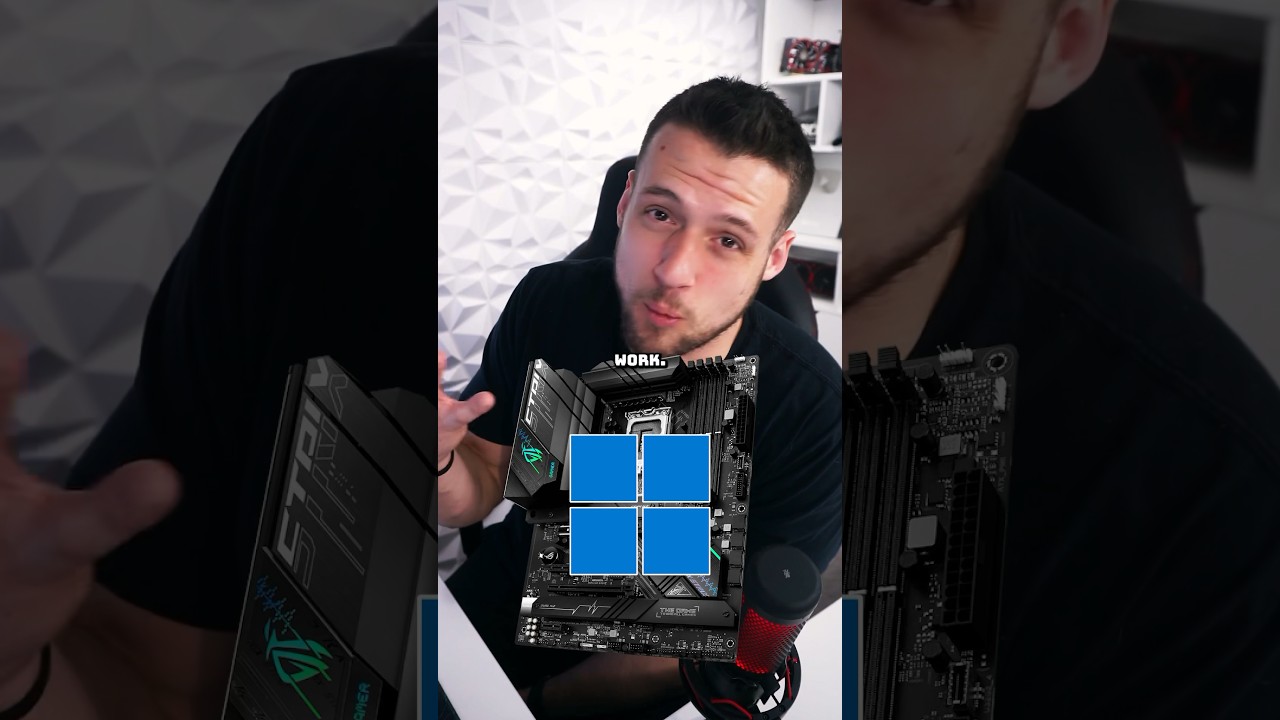
Ah, the classic PC upgrade dilemma! You've just replaced a major component, perhaps even your entire motherboard, or you're finally taking the plunge into a fresh Windows installation. A nagging question inevitably pops into your head: Do You Need a Windows Key When Upgrading a PC? It's a question that can send even seasoned tech enthusiasts into a Google spiral, and for good reason—the answer isn't always a simple 'yes' or 'no'. It's nuanced, tied deeply to how your current Windows license works, and what exactly you're upgrading. Let's demystify it so you can upgrade with confidence, not confusion.
Understanding Your Current Windows License
Before you even think about buying a new key, it's crucial to understand the nature of your existing Windows license. Many users activate Windows via a digital license, especially if they upgraded from Windows 7 or 8 during the free upgrade period, or if their system came pre-installed with Windows. This digital license is often linked to your Microsoft account or the hardware fingerprint of your motherboard.
- Digital Licenses Linked to Microsoft Account: If you signed into Windows with a Microsoft account after activation, your license is likely linked. This is a powerful feature, as it allows you to reactivate Windows on the same or new hardware simply by logging in with your Microsoft account after a fresh installation.
- Digital Licenses Linked to Hardware: Older digital licenses might be solely tied to your motherboard's unique identifier. If you replace only minor components (RAM, GPU, storage drives), Windows typically reactivates automatically.
- OEM (Original Equipment Manufacturer) Licenses: These licenses come pre-installed on branded PCs (Dell, HP, Lenovo, etc.). They are generally tied to the original hardware and are non-transferable to a completely different PC.
- Retail Licenses: If you purchased a Windows key box or digital download separately, you likely have a retail license. These are generally transferable to new hardware, provided you deactivate the old installation first.
Knowing which type of license you have is the first step in determining your needs.
When You Might Not Need a New Key
The good news is, in many common upgrade scenarios, you might not need to shell out for a new Windows key. Here are the situations where your existing license likely carries over:
- Minor Component Upgrades: Swapping out your graphics card, adding more RAM, upgrading your storage drive (HDD to SSD), or installing a new CPU (on the same motherboard) rarely triggers a need for re-activation or a new key. Windows is usually smart enough to recognize it's still the same core system.
- Reinstalling Windows on the Same PC: If you're simply performing a clean installation of Windows on the exact same hardware, and your license is linked to your Microsoft account or the motherboard, Windows will usually reactivate automatically once you connect to the internet and log in with your Microsoft account.
- Motherboard Replacement (with Digital License Linked to Microsoft Account): This is the trickiest one. If your digital license is linked to your Microsoft account, and you're replacing your motherboard, you can often use the "Troubleshoot" option in Windows activation settings after the new board is installed. This allows you to select your old device from a list and transfer the license. This feature works best for retail digital licenses, but sometimes even OEM digital licenses can be migrated with Microsoft's help.
Always try to reactivate first using your Microsoft account before assuming you need a new key.
When a New Windows Key Becomes Essential
Unfortunately, there are specific scenarios where acquiring a new Windows product key becomes unavoidable. These situations typically involve significant changes to your system's core identity or an entirely new build:
- Building a Brand New PC: If you're assembling a PC from scratch with all new components, you will undoubtedly need a new, legitimate Windows key to activate your operating system.
- Significant Hardware Changes Without a Transferable License: If you're replacing your motherboard and your old license was an OEM key *not* linked to your Microsoft account for transfer, or if you simply cannot get the troubleshooting option to work, your old license might become invalid, requiring a new purchase.
- Upgrading from a Non-Genuine or Pirated Version: If you're currently running an unactivated or pirated version of Windows, any upgrade will require a legitimate product key for full functionality and security updates.
- Changing Windows Edition: Moving from, say, Windows 11 Home to Windows 11 Professional, typically requires a new Professional key. While you can sometimes enter a new key in your existing Home installation to upgrade, it's essentially buying a new license for the higher edition.
In these cases, purchasing a genuine key is the only path to a fully licensed and supported Windows experience.
Acquiring a Genuine Windows Key
If you determine that you do need a new Windows key, it's crucial to purchase from legitimate and reputable sources to ensure you receive a valid license and avoid potential security risks. You have a few primary avenues:
- Microsoft's Official Website: This is the most direct and guaranteed source for a genuine Windows key. You can purchase digital licenses directly from Microsoft's online store.
- Authorized Retailers: Major electronics retailers (both online and brick-and-mortar) are authorized to sell Windows licenses. Look for reputable names to ensure authenticity.
- Third-Party Online Key Sellers: There's a vast market for Windows keys from third-party online sellers. These keys can often be significantly cheaper than direct Microsoft purchases. However, exercise caution. While many are legitimate, reselling excess OEM keys or volume licenses, some may be selling invalid or grey-market keys. For instance, solutions like a Windows 11 Professional key are available from various online retailers specializing in software licenses. If you opt for these, always ensure the seller has strong customer reviews, clear return policies, and offers genuine support in case of activation issues.
Remember, a genuine key not only activates your Windows but also ensures you receive critical security updates and full access to Microsoft's support and services.
The Bottom Line
So, do you need a Windows key when upgrading a PC? The answer, as we've explored, is a resounding "it depends." For minor upgrades and reinstallations on the same hardware, your existing digital license (especially if linked to a Microsoft account) will often suffice. However, for brand new builds, significant motherboard replacements without license transfer capabilities, or moving from unactivated versions, a new, genuine Windows key is an absolute necessity. Always check your activation status after an upgrade and try the built-in troubleshooters first. If all else fails, investing in a legitimate key from a reliable source is the smartest way to ensure a stable, secure, and fully functional operating system for years to come.


.png)
.png)


Follow Us